
Which device would you like to watch on?
Select your device to view its setup guide.
Install TV Moderne on Fire Stick
Preconfigured TV Moderne app, included free with your service.
- Install DownloaderFrom the home screen, open search 🔎 and install Downloader (orange icon with a white D).
- Open Fire Stick settingsGo to Settings ⚙ → My Fire TV → Developer Options.
- Show developer optionsIf they are missing, open My Fire TV → About, select your device and press the centre button about 7 times until the confirmation message appears. Go back.
- Allow DownloaderOpen Install Unknown Apps and allow Downloader. ADB Debugging is generally not required for this installation.
- Enter your service codeLaunch Downloader, enter the matching code below in Home, then select Go. Then confirm the download and installation.
- Sign in to TV ModerneOpen the installed app and enter the username and password you received by email or Messenger. The server is preconfigured where applicable.
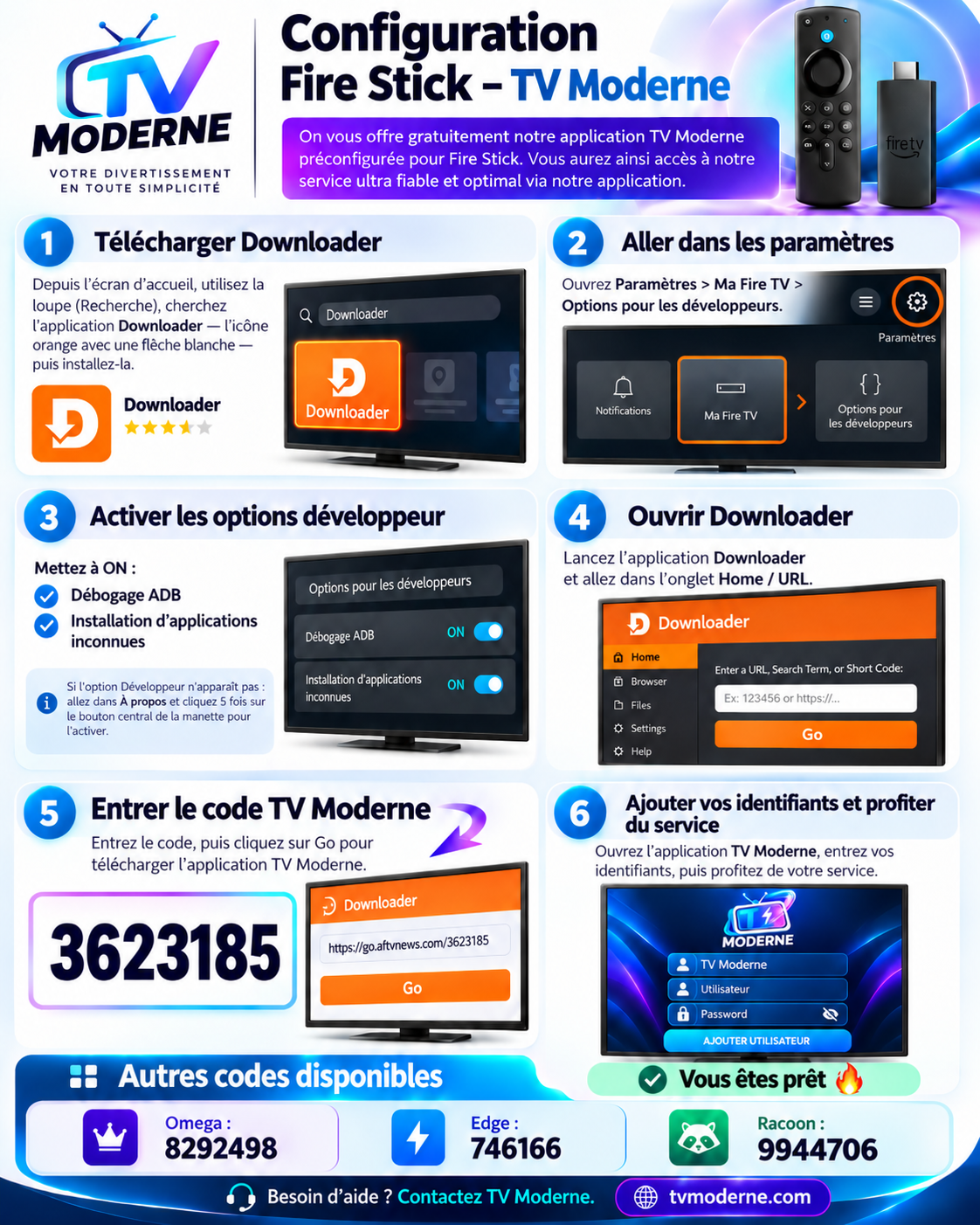
Downloader codes for our 4 services
🔐 Have your login details ready
Install TV Moderne on Android TV
For compatible Android TVs, Google TV devices and Android boxes.
- Open the Play StoreOn your Android device, open the Google Play Store.
- Search for DownloaderSearch for Downloader (orange icon with a white arrow), then install the app if it is available on your device.
- Enable developer mode if neededOn Android TV / Google TV, open Settings → System → About, then click about 7 times on Build if needed.
- Allow external app installationGo to Settings → Apps → Special app access → Install Unknown Apps and allow Downloader. The location depends on your device.
- Download your appOpen Downloader, enter your chosen service code, select Go and install the suggested app.
- Enter your login detailsOpen the TV Moderne app and enter your username and password.
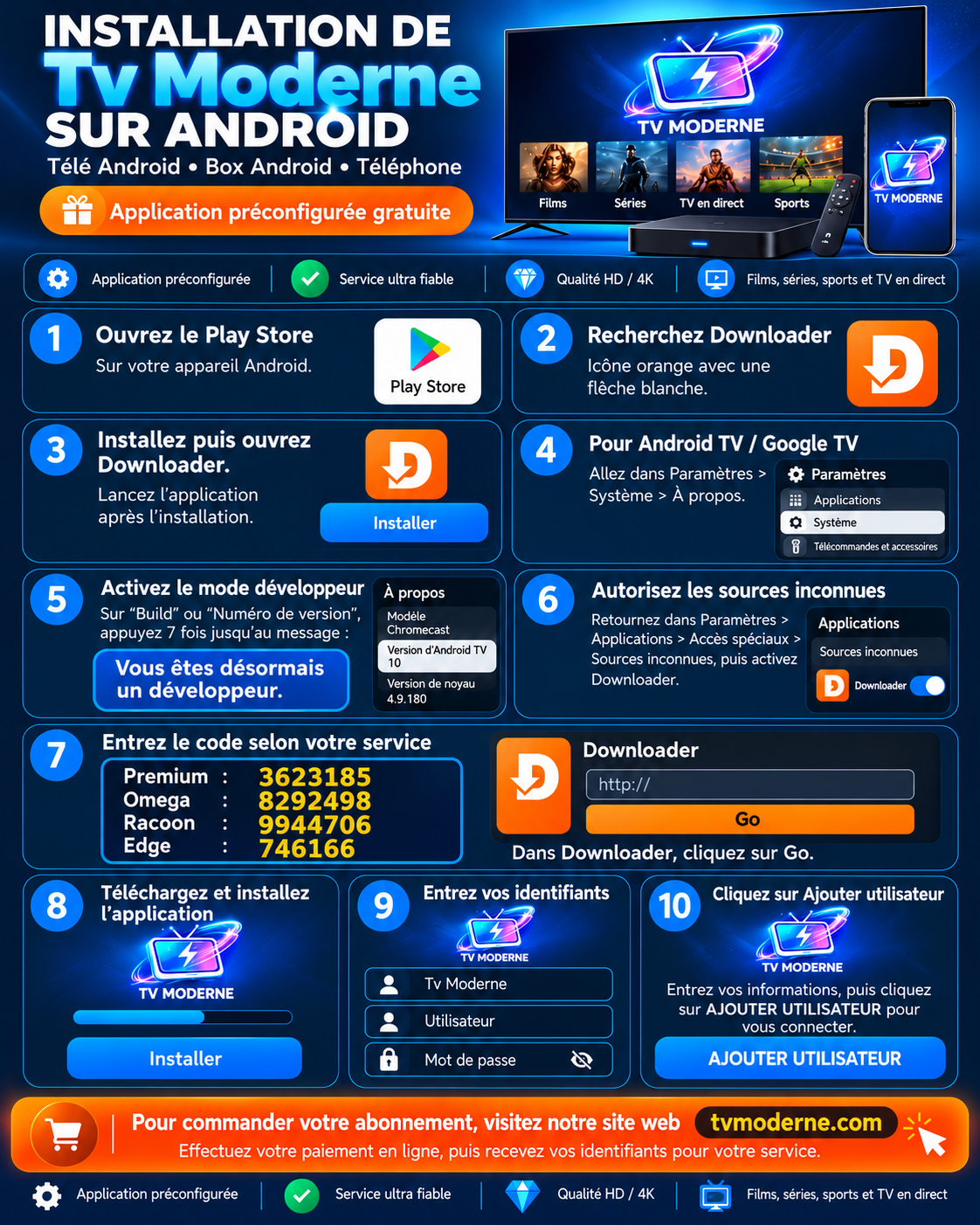
Downloader codes by service
Smart TV: Smarters Pro or IBO Player
For compatible Samsung, LG and other Smart TVs.
- Install the playerOpen your TV’s app store. Search for IPTV Smarters Pro or IBO Player Pro, depending on the apps available for your model.
- Open the appFind the Playlist / Playlist Management screen with its QR code or activation address.
- Scan the QR codeUse your phone to scan the code displayed on your TV and open the website shown by the app.
- Add an XC playlistChoose Add XC Playlist / Xtream Codes and fill in Playlist Name, Server URL, Username and Password using the information provided by TV Moderne.
- Confirm your login detailsSave the playlist. If the app asks for an administrator PIN, use the one shown on your screen or in its instructions; 9999 is used in some versions, but is not universal.
- Refresh your TVReturn to your TV and select Refresh. Your channels, movies and series should load.
Information needed for Smarters / IBO
Roku with IBO Player
A simple setup using your TV Moderne login details.
- Install IBO PlayerIn the Roku Channel Store, search for IBO Player and install it if available for your model and region.
- Open the playerLaunch IBO Player and find the QR code or playlist management address shown on screen.
- Open the activation pageScan the QR code with your phone, then follow the official page shown by the app.
- Add your subscriptionChoose Add XC Playlist / Xtream Codes, then enter your TV Moderne server URL, username and password.
- Save and refreshSave on your phone, then on Roku select Refresh.
iPhone, iPad and Apple TV
Recommended apps: iMPlayer, IPTVX or Chillio, depending on your device and availability.
- Open the App StoreSearch for iMPlayer, IPTVX or Chillio. Check compatibility with your device and choose an available app.
- Add a playlistIn the installed app, look for Add Playlist, Add a list or +.
- Choose Xtream CodesIf offered, select Xtream Codes / XC API as the connection type.
- Enter your informationPlaylist Name : TV Moderne ; Server URL : supplied address; Username : your username; Password : your password.
- Save and waitSelect Save / Done then wait for channels, movies, series and the EPG to load, if available.
Formuler Z10 and Z11: MyTVOnline
Our recommended option for enjoying the service on a big screen.
📦 Formuler Z10 · MyTVOnline 2
- Open MyTVOnline 2Launch MYTVOnline 2 from the box’s home screen.
- Open connectionsPress the Menu ☰ (three lines) button on your remote, then choose Connections.
- Add a portalSelect Add Portal. Give it a name, such as TV Moderne.
- Add your login detailsEnter Portal URL ; check Login required? then fill in Username and Password.
- ConnectChoose Connect and let the guide and channels load.
📦 Formuler Z11 · MyTVOnline 3
- Open MyTVOnline 3Launch MYTVOnline 3 and press Menu ☰.
- Open sourcesGo to Content Manager → Content Sources.
- Add a portalSelect Add → Portal. Enter the portal name and URL you received.
- Sign in to your accountEnable Login required if offered; enter your username and password, then select Connect.
Formuler Z10
MYTVOnline 2, 4K, TV guide, favourites and recording with compatible equipment.
Discover the Formuler Z10 ↗Formuler Z11 Pro Max BT1
MYTVOnline 3, 4K and a Bluetooth BT1 remote. Explore the models and check availability.
Compare Formuler boxes ↗Windows with IPTVnator
Add your subscription on your computer, then set up your player.
- Download IPTVnatorVisit the official repository GitHub · IPTVnator Releases ↗ and download the Windows version suitable for your computer.
- Install the appRun the installer and open IPTVnator.
- Add a playlistChoose Add Playlist, then Xtream Codes / XC.
- Enter your login detailsName: TV Moderne ; Server URL: your address; Username and Password: your login details.
- Save and startChoose Save / Connect. Wait for channels, movies and series to load.
If a channel does not play
- Change the video playerUnder Settings → Player / Video Player, choose VLC or MPV if the option is available and the player is installed.
- Restart IPTVnatorSave, close the app and try the channel again.
- Test the stream formatIn your playlist settings, if the option exists and your server supports it, try MPEG-TS (TS) instead of HLS (M3U8).
Discover Formuler 4K boxes
Simple setup, a user-friendly interface, TV guide and recording options depending on the model.
Frequently asked questions
Where can I find my username and password?
Your login details are sent after your trial or order, usually by email or Messenger. If you cannot find them, contact support and tell us your chosen service (Premium, Racoon, Omega or Edge).
Do Downloader codes work on every device?
No. These codes are for devices compatible with Downloader and Android app installation. Samsung/LG Smart TVs, Roku, Apple and Windows instead use a compatible player and the connection details provided.
What is the difference between the TV app and the subscription?
The app lets you watch content. Your TV Moderne subscription provides access to your service. Some third-party apps, such as IBO or Smarters, may require a separate activation payment charged by their developer.
What if my screen does not match the images?
Menus vary by model and version. Take a photo of the relevant screen without showing your password, then contact our team for instructions suited to your device.
What if the app is installed but does not work?
First check your Internet connection and login details, then restart the app and refresh the channel list. You can also visit our help and troubleshooting centre.
Stuck on a step?
Contact us through the website’s live chat. Send a photo of your screen and tell us your device model.